Product Overview & Parts
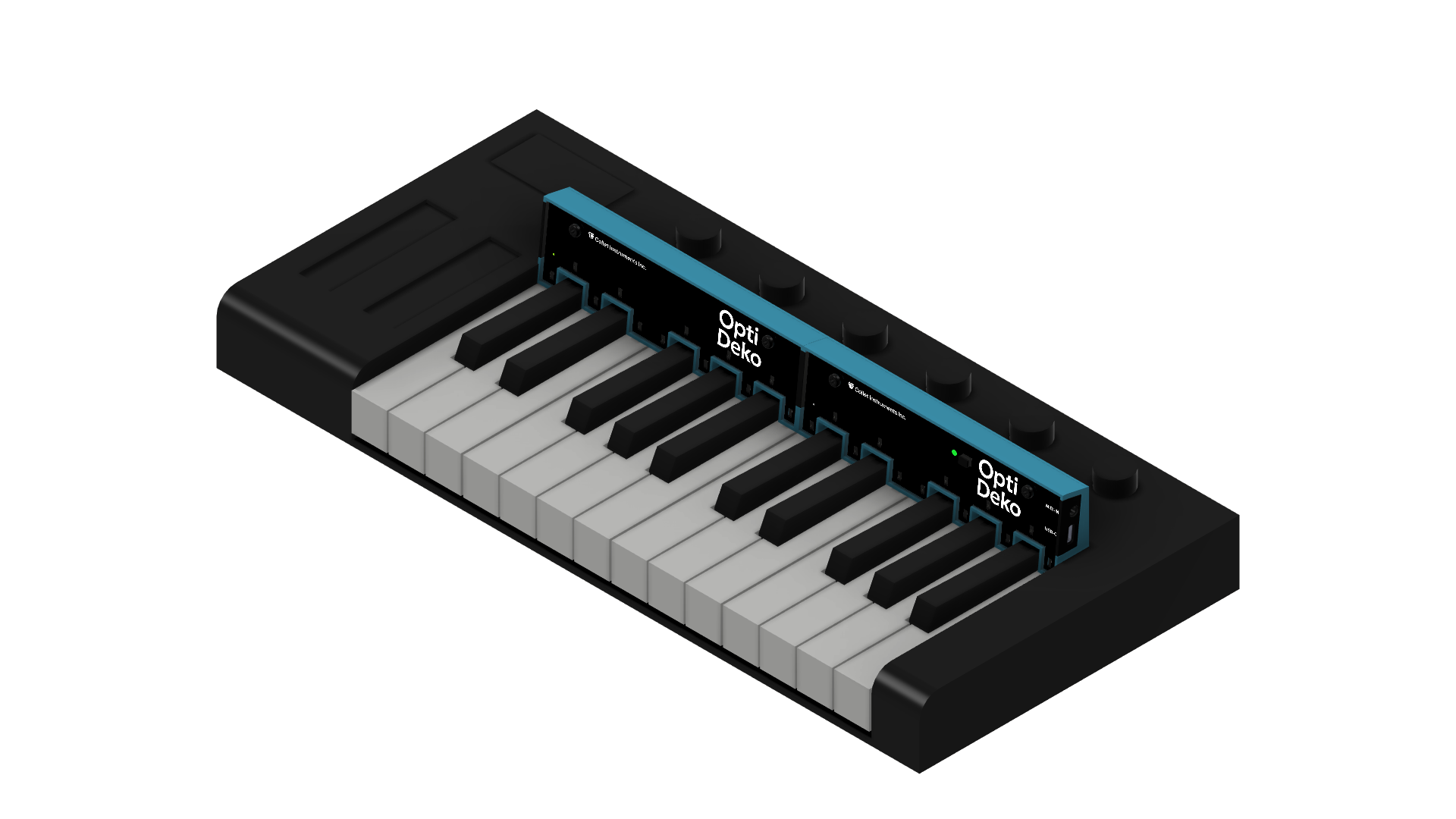
Opti Deko is a performance interface that attaches to a MIDI keyboard.
Optical distance sensors positioned at the back of the keys detect finger positions and movements on the keys without physical contact. The detected information is output as MIDI messages, allowing continuous control of pitch, timbre, and other parameters through finger movements in addition to normal keyboard playing.
This product is an expansion device that works with a MIDI keyboard to add new expressive possibilities, rather than replacing the keyboard itself.
Key Features
Section titled “Key Features”-
Attaches to existing electronic keyboards Install it on a compatible electronic keyboard.
-
Optical fingertip detection Optical sensors detect finger movements on the keys.
-
Continuous performance control Outputs continuous MIDI data in response to finger positions and movements.
-
Expression through MPE (MIDI Polyphonic Expression) With MPE-compatible instruments or software, each note can be controlled independently.
-
Microtonal performance MPE pitch control allows performance setups beyond 12-tone equal temperament.
-
Expandable sensor coverage Connect multiple Opti Deko units to extend the detection range.
System Configuration
Section titled “System Configuration”The following diagram shows a typical setup.
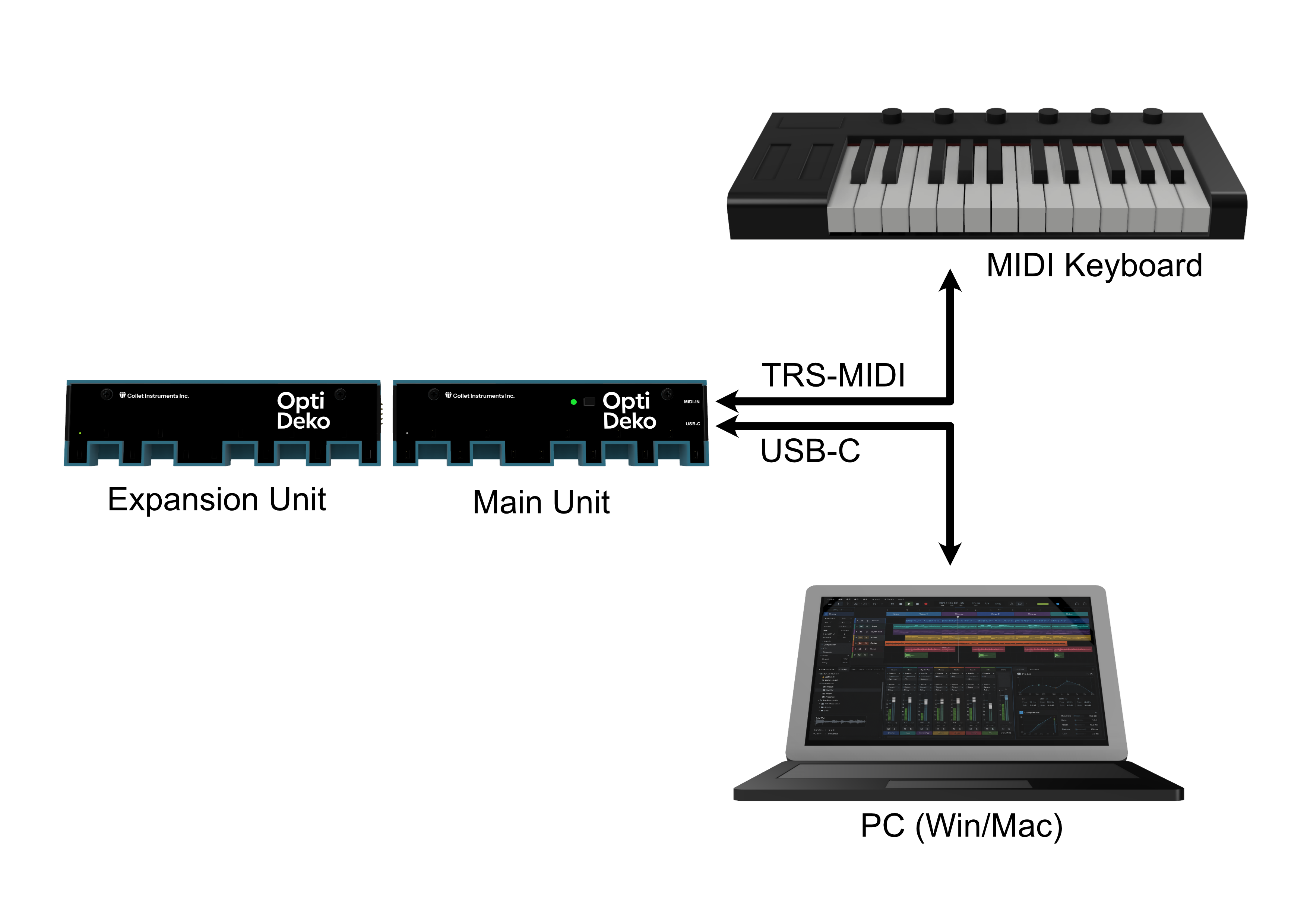
There are two types of Opti Deko unit: Main Unit and Expansion Unit.
Connect the Main Unit to the MIDI keyboard with a 3.5 mm TRS-MIDI cable to receive key information. Connect the Main Unit to a computer with a USB-C cable for power and MIDI data communication. Connect an Expansion Unit to the Main Unit to extend the detection range. Additional Expansion Units can also be connected to an Expansion Unit.
Main Unit
Section titled “Main Unit”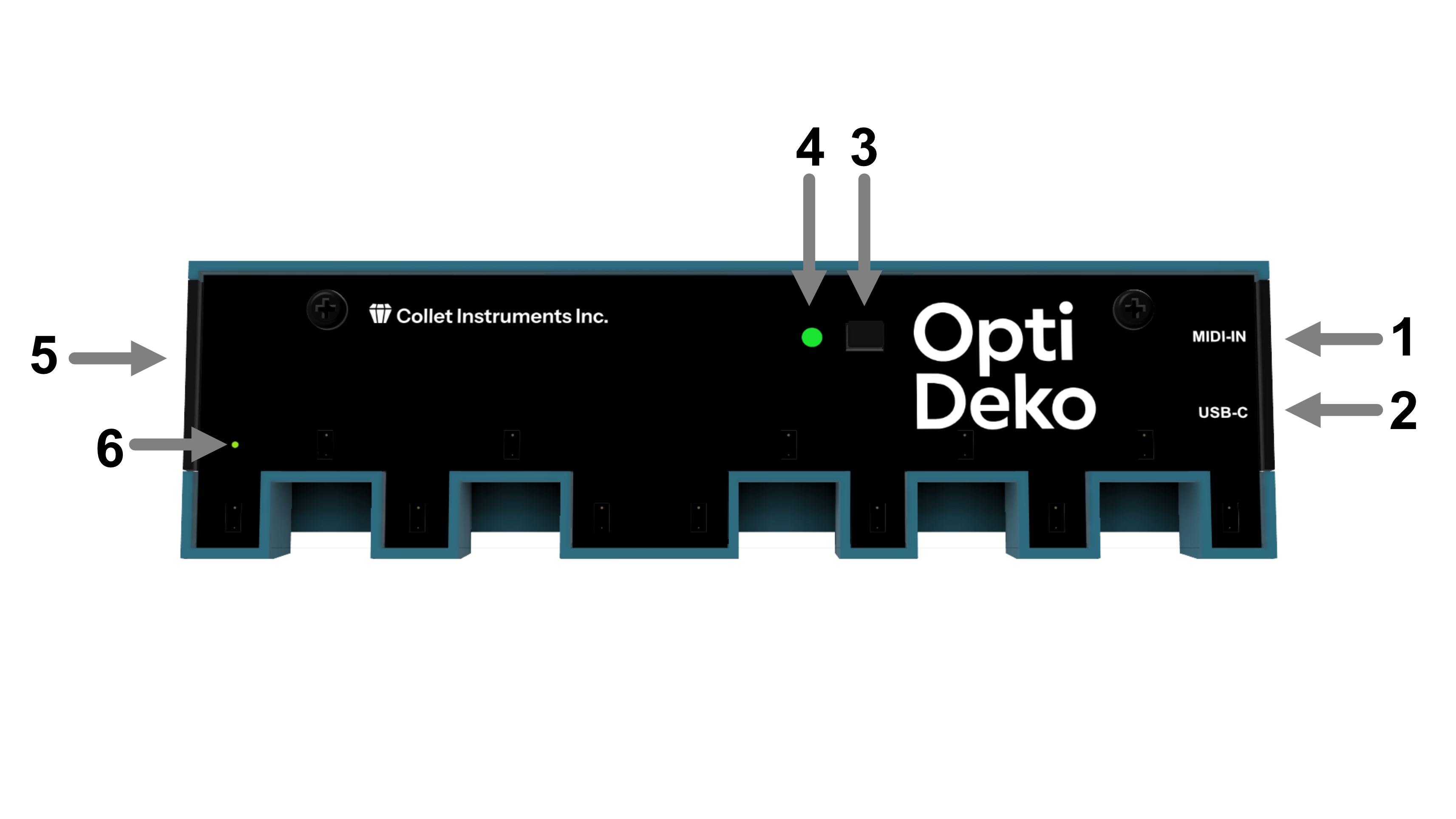
1. MIDI-IN Port
- Connects to the MIDI output port of a MIDI keyboard. Use a 3.5 mm TRS-MIDI Type-A cable.
2. USB-C Port
- Connects to a computer. Use a USB Type-C cable.
3. Mode Button
- Switches operating modes and starts keyboard alignment.
4. Color LED
- A full-color LED that indicates the operating mode, startup status, and other states.
5. Magnetic Contacts
- Connect to an Expansion Unit.
6. Guide LED
- Used for keyboard alignment.
Distance Sensors
- There are 12 distance sensors in total. They are covered by a transparent acrylic panel.
Expansion Unit
Section titled “Expansion Unit”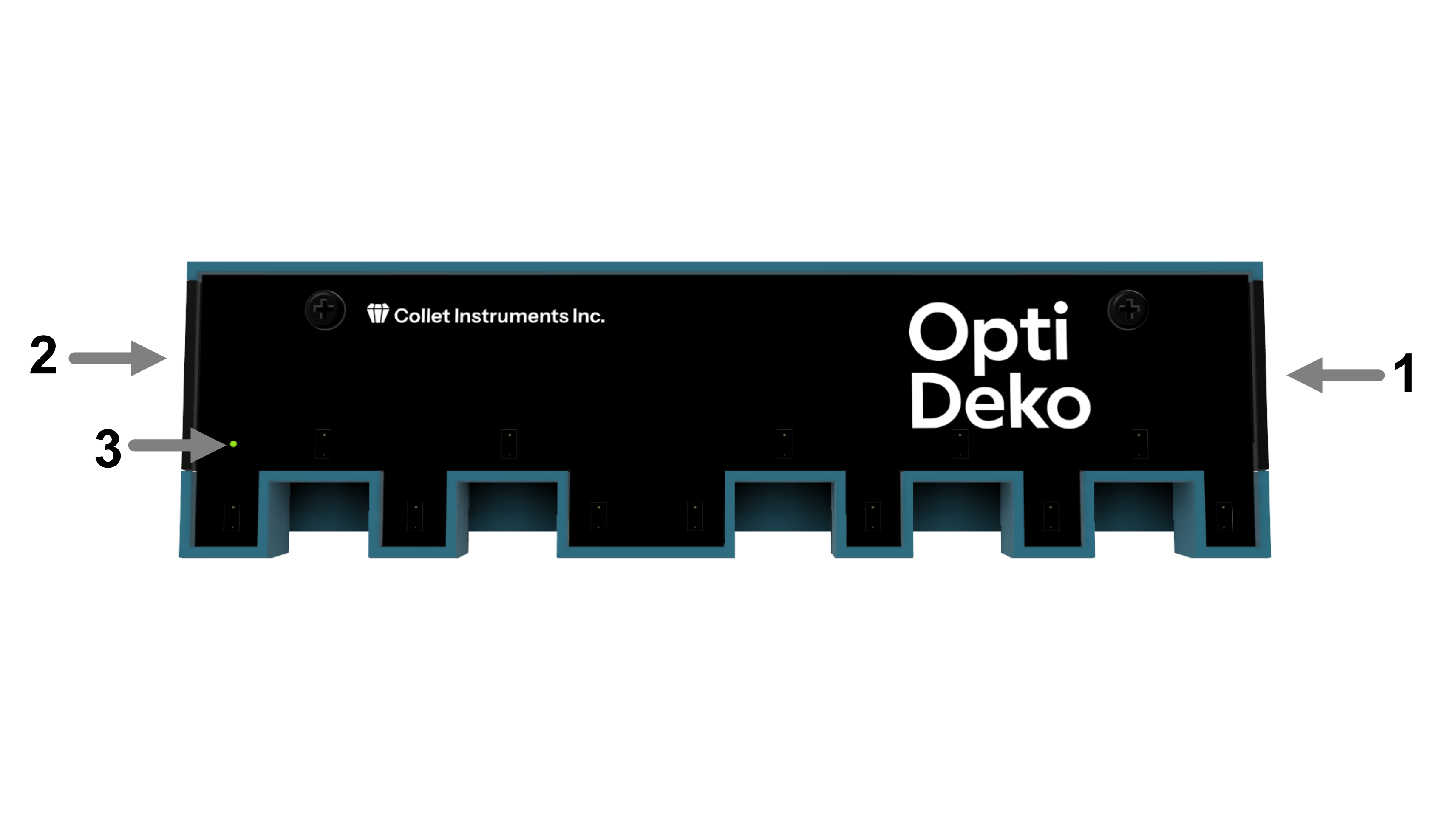
1. Extendable Magnetic Contacts
- Connect to a Main Unit or an Expansion Unit.
2. Magnetic Contacts
- Connect to an Expansion Unit.
3. Guide LED
- Used for keyboard alignment.
Distance Sensors
- There are 12 distance sensors in total. They are covered by a transparent acrylic panel.