Operation & Settings
Opti Deko uses MPE (MIDI Polyphonic Expression) to control each note individually while you play.
For example, even when you hold down several keys at once, moving your finger on one key can change only that note.
Settings
Section titled “Settings”DAW Settings
Section titled “DAW Settings”Before using Opti Deko, configure your DAW to use MPE.
- Open the DAW’s MIDI device or input device settings.
- Select Opti Deko as a MIDI input device.
- Enable MPE if an MPE setting is available.
- Route MIDI input from Opti Deko to the software instrument you want to use.
NOTE Setup procedures and setting names vary by DAW. Refer to your DAW’s manual for details.
Software Instrument Settings
Section titled “Software Instrument Settings”Make sure your software instrument supports MPE, and enable MPE if necessary.
Set the instrument’s per-note (Member Channel) Pitch Bend Range to ±48 semitones. If your DAW also has a per-note pitch bend range setting, set it to the same value. If the ranges do not match, the pitch change in 24-tone equal temperament mode will not be 50 cents.
NOTE The per-note range and the Master Channel range, which applies to the entire performance, are separate settings. This instruction does not mean changing the Master Channel range to ±48 semitones. Setting names vary by DAW and instrument; refer to their respective manuals.
MPE setup and the timbral changes produced by finger movements depend on the software instrument.
NOTE If operating Opti Deko does not change the sound, check your DAW’s MIDI routing and the software instrument’s MPE settings.
Basic Operation
Section titled “Basic Operation”Switching Operating Modes
Section titled “Switching Operating Modes”Opti Deko has two operating modes:
| Mode | Color LED | Behavior |
|---|---|---|
| Slide mode (Preset A) | Green | Finger movements toward the front or back of the keys change the sound continuously |
| 24-tone equal temperament mode (Preset B) | Blue | Switches pitch between the front and back areas of each key |
24-tone equal temperament mode lets you play microtones (intervals smaller than a standard semitone).
Opti Deko starts in Slide mode when powered on.
In Slide mode, the Color LED lights green.
Briefly press the Main Unit’s Mode button once to switch to 24-tone equal temperament mode. In this mode, the Color LED lights blue.
Briefly press the Mode button once again to return to Slide mode. The Color LED lights green.
CAUTION Holding the Mode button for at least 3 seconds starts keyboard alignment. To switch modes, briefly press the button once rather than holding it down.
Slide Mode
Section titled “Slide Mode”When using Slide mode, check that the Color LED is green.
Hold down a key and move your finger toward the front or back of the key. The sound of the held note changes continuously according to your finger position.
-
Move your finger toward the front
The sound becomes darker and more muffled. -
Move your finger toward the back
The sound becomes brighter.
Even when playing several notes at once, MPE lets you control each note individually.
For example, if you hold C and E together and move only the finger on C, only the C note changes.
NOTE Actual timbral changes depend on the software instrument and preset. If you cannot hear a change, check the instrument’s MPE settings and your DAW’s MIDI routing.
24-Tone Equal Temperament Mode
Section titled “24-Tone Equal Temperament Mode”When using 24-tone equal temperament mode, check that the Color LED is blue.
In this mode, the pitch changes according to your finger’s position toward the front or back of the key.
-
Front of the key
Plays at the normal pitch. -
Back of the key
Plays half a semitone (50 cents) above the normal pitch.
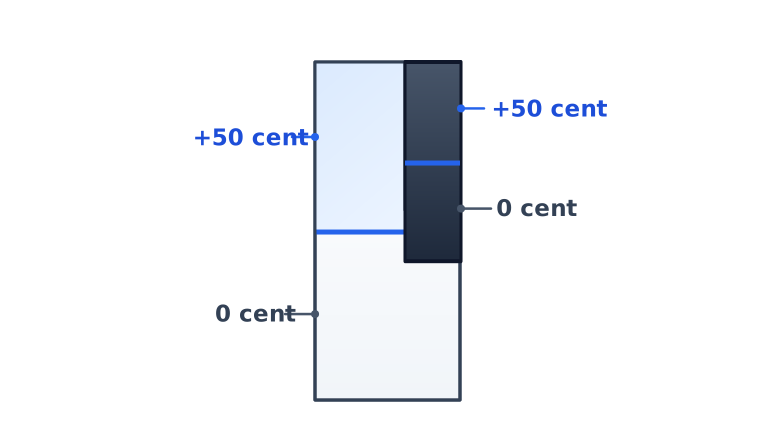
Moving your finger between the front and back areas while a note is sounding switches that note’s pitch.
A conventional keyboard divides an octave into 12 pitch steps. Opti Deko assigns each key both its normal pitch and a pitch 50 cents higher, allowing performance in 24-tone equal temperament (24 EDO).
NOTE To play at the correct pitch, your DAW and software instrument must be configured to process MPE pitch bend correctly.
Using MIDI Keyboard Functions Together with Opti Deko
Section titled “Using MIDI Keyboard Functions Together with Opti Deko”You can combine the performance functions of your connected MIDI keyboard with Opti Deko’s expressive controls.
For example, on a keyboard that supports them, you can use:
- A modulation wheel
- A pitch bend wheel
- Aftertouch
- MIDI controllers such as a sustain pedal
Combining these controls with finger movements detected by Opti Deko lets you control multiple forms of expression at once.
NOTE The behavior of your keyboard’s controllers depends on the MIDI keyboard, DAW, software instrument, and MPE settings.